> For the complete documentation index, see [llms.txt](https://ovatheme.gitbook.io/meup/llms.txt). Markdown versions of documentation pages are available by appending `.md` to page URLs; this page is available as [Markdown](https://ovatheme.gitbook.io/meup/main-features/admin-features/events.md).

# Events

This is where all events are managed.

## **1:** Manage Event List

Go to **Events >> Events**

* View/edit/delete any events
* Filter events by name

<figure><img src="https://4016371164-files.gitbook.io/~/files/v0/b/gitbook-x-prod.appspot.com/o/spaces%2F-M1-bzGggknMKVWOqg5-%2Fuploads%2FtX6K0ZnA3kDR74eC7XSc%2FScreenshot%202025-10-17%20at%2016.13.19.png?alt=media&amp;token=c4ef0337-a79f-4ec9-8f4c-d71961d0e292" alt=""><figcaption></figcaption></figure>

## 2: Create new event

#### Watch Video Tutorials: <https://youtu.be/w0AaE1veM8c>

Go to **Events >> Events >> Add New Event**

<figure><img src="https://4016371164-files.gitbook.io/~/files/v0/b/gitbook-x-prod.appspot.com/o/spaces%2F-M1-bzGggknMKVWOqg5-%2Fuploads%2F97opIvWQIU47IuhE23a7%2Fadd-new-event-meup.png?alt=media&amp;token=a2180faa-44f6-4c67-9cb3-627ac7bbe1f4" alt=""><figcaption></figcaption></figure>

### 2.1: General Settings

**Settings the Admin can configure:**&#x20;

* Add Event Title
* Add Event Description
* Set the header and footer version for the event detail page.
* Choose the main layout and the site width
* Select Categories (Read [here](/meup/main-features/admin-features/categories.md) to know how to create a category)
* Add Tags (Read [here](/meup/main-features/admin-features/tags.md) to know how to create a tag)
* Select Custom Taxonomies: Job & Time (Read [here](/meup/main-features/admin-features/custom-taxonomy.md) to learn more about custom taxonomies)
* Set Featured Image
* Assign the event author to any vendor.

<figure><img src="https://4016371164-files.gitbook.io/~/files/v0/b/gitbook-x-prod.appspot.com/o/spaces%2F-M1-bzGggknMKVWOqg5-%2Fuploads%2FBLgI23FjHjrrz0Rvm9g7%2Fevent.png?alt=media&amp;token=90b0a61c-f551-4047-af3c-52eb7182cf0e" alt=""><figcaption></figcaption></figure>

### 2.2: Basic Settings

<figure><img src="https://4016371164-files.gitbook.io/~/files/v0/b/gitbook-x-prod.appspot.com/o/spaces%2F-M1-bzGggknMKVWOqg5-%2Fuploads%2FQbcAp1ns0nKT5KsDzy2D%2FScreenshot%202025-10-21%20at%2017.19.21.png?alt=media&amp;token=1d443a6d-d831-4ba7-950c-5ba709768d71" alt=""><figcaption></figcaption></figure>

**a) Membership ID**

* After a vendor successfully subscribes to a package, the system automatically generates a membership record that defines the vendor’s available permissions during the package period.\
  The Membership ID serves as the unique identifier of this record.\
  When an admin or vendor creates a new event, the system automatically assigns the corresponding Membership ID to it, ensuring that the event inherits all permissions from the related membership package.
* Only Admin can add new or change Membership ID of an event.
* To find Membership ID, go to Events >> Manage packages >> click "All Membership" link

<div><figure><img src="https://4016371164-files.gitbook.io/~/files/v0/b/gitbook-x-prod.appspot.com/o/spaces%2F-M1-bzGggknMKVWOqg5-%2Fuploads%2F7a158FGbRjEX6Kbm9MqJ%2FScreenshot%202025-10-17%20at%2017.35.06.png?alt=media&amp;token=243bfe9b-2076-494c-adaf-8163f6387f36" alt=""><figcaption></figcaption></figure> <figure><img src="https://4016371164-files.gitbook.io/~/files/v0/b/gitbook-x-prod.appspot.com/o/spaces%2F-M1-bzGggknMKVWOqg5-%2Fuploads%2F3dDdKMg99Hnk0nui0mnL%2FScreenshot%202025-10-17%20at%2017.35.56.png?alt=media&amp;token=b59671ff-16f2-44e7-93c1-04c4a67c2e54" alt=""><figcaption></figcaption></figure></div>

**b) Featured**

Mark the event as featured to highlight it on the event list or homepage

**c) Time Zone**

Choose the event time zone so times display correctly for everyone

<div><figure><img src="https://4016371164-files.gitbook.io/~/files/v0/b/gitbook-x-prod.appspot.com/o/spaces%2F-M1-bzGggknMKVWOqg5-%2Fuploads%2FedOKO89qJhUJtHNZIja6%2FScreenshot%202025-10-21%20at%2017.21.10.png?alt=media&amp;token=09f0b0d8-e09e-488e-900a-ab48e54e6645" alt=""><figcaption><p>Card Event template</p></figcaption></figure> <figure><img src="https://4016371164-files.gitbook.io/~/files/v0/b/gitbook-x-prod.appspot.com/o/spaces%2F-M1-bzGggknMKVWOqg5-%2Fuploads%2FU2DL6ekJJKAfyOZileVe%2FScreenshot%202025-10-21%20at%2017.20.33.png?alt=media&amp;token=8d6c6603-b453-4afc-956e-17b88f2d7b53" alt=""><figcaption><p>Event Detail page</p></figcaption></figure></div>

**d) Contact Information**

* Checked the box **“Use other information without your profile info”,** if you want to provide custom contact details for this event instead of using the information saved in your profile.
* Unchecked to automatically use the contact information from your profile.

<div><figure><img src="https://4016371164-files.gitbook.io/~/files/v0/b/gitbook-x-prod.appspot.com/o/spaces%2F-M1-bzGggknMKVWOqg5-%2Fuploads%2FuzkmhIOy6xD5E7rY3n87%2FScreenshot%202025-10-22%20at%2014.14.02.png?alt=media&amp;token=b2811242-4b5d-435b-ba6a-880cb03fd8f6" alt=""><figcaption><p>Backend</p></figcaption></figure> <figure><img src="https://4016371164-files.gitbook.io/~/files/v0/b/gitbook-x-prod.appspot.com/o/spaces%2F-M1-bzGggknMKVWOqg5-%2Fuploads%2FVv2nnhI8iOPNH5Zu7BMg%2FScreenshot%202025-10-21%20at%2017.23.15.png?alt=media&amp;token=28d488f1-1d40-4844-9e31-351d611eee2c" alt=""><figcaption><p>Frontend</p></figcaption></figure></div>

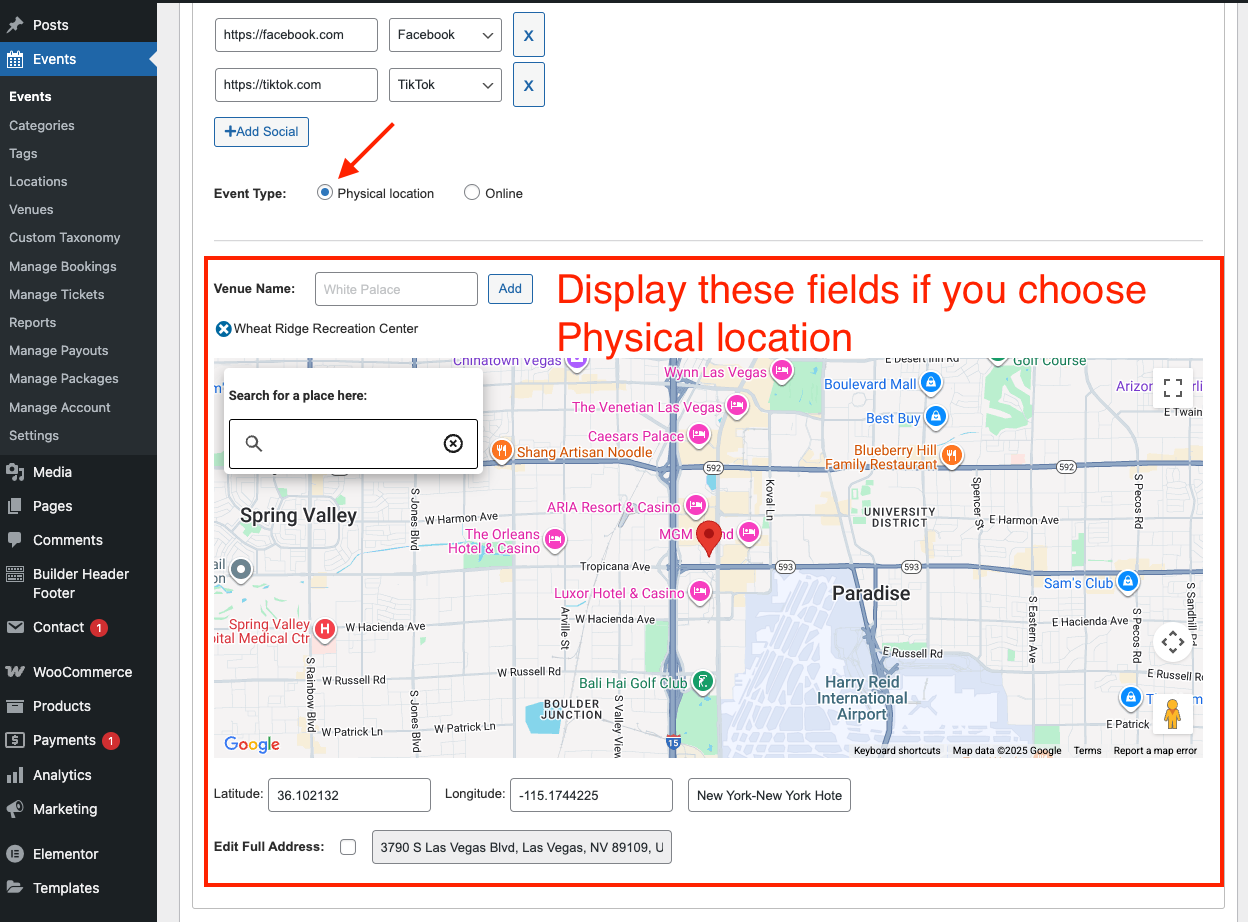
**e) Event Type**

Choose one of the two options:

* **Physical Location**
* **Online**

>

**Physical Location**

Note: If you select Physical Location, you can add the venue address and set up a map. To configure the map, [Read here](/meup/other/make-google-key-map-api.md)

Watch the **video tutorial** on setting the event location on the map: <https://youtu.be/O7f4gUzXRYc>

<div><figure><img src="https://4016371164-files.gitbook.io/~/files/v0/b/gitbook-x-prod.appspot.com/o/spaces%2F-M1-bzGggknMKVWOqg5-%2Fuploads%2F3RCCsQgGzzK4dmg1vrM3%2FScreenshot%202025-10-21%20at%2017.28.06.png?alt=media&amp;token=5c3c9f49-eccd-4ee9-ad29-2fb1f0a42219" alt=""><figcaption><p>Backend</p></figcaption></figure> <figure><img src="https://4016371164-files.gitbook.io/~/files/v0/b/gitbook-x-prod.appspot.com/o/spaces%2F-M1-bzGggknMKVWOqg5-%2Fuploads%2FpFD65UAz2RPxyinuFJhk%2FScreenshot%202025-10-22%20at%2014.11.59.png?alt=media&amp;token=65a902c4-dddb-4fc4-a71e-3ca14cff4b88" alt=""><figcaption><p>Frontend</p></figcaption></figure></div>

**Online**

<div><figure><img src="https://4016371164-files.gitbook.io/~/files/v0/b/gitbook-x-prod.appspot.com/o/spaces%2F-M1-bzGggknMKVWOqg5-%2Fuploads%2FoUQENtq5P8t4PHZyy1dF%2FScreenshot%202025-10-22%20at%2014.21.24.png?alt=media&amp;token=d7dd247d-3440-4953-8153-53a71755d153" alt=""><figcaption><p>Backend</p></figcaption></figure> <figure><img src="https://4016371164-files.gitbook.io/~/files/v0/b/gitbook-x-prod.appspot.com/o/spaces%2F-M1-bzGggknMKVWOqg5-%2Fuploads%2Fo7YvVyZ4sY96aBD7e5fD%2FScreenshot%202025-10-22%20at%2014.21.44.png?alt=media&amp;token=74d3362d-9038-4c8c-b30b-5627dcb3d249" alt=""><figcaption><p>Event Detail page</p></figcaption></figure> <figure><img src="https://4016371164-files.gitbook.io/~/files/v0/b/gitbook-x-prod.appspot.com/o/spaces%2F-M1-bzGggknMKVWOqg5-%2Fuploads%2FKxmNp4Cob1w0AW3s0NqE%2FScreenshot%202025-10-22%20at%2014.22.20.png?alt=media&amp;token=7d2b0c3b-3eb2-4495-ad8f-f6eb622d1757" alt=""><figcaption><p>Archive event page</p></figcaption></figure></div>

### 2.3: Gallery and Videos

#### Settings in Backend

With the feature, the Admin can:

* **Add Images for the event**
* **Insert event video link**

<figure><img src="https://4016371164-files.gitbook.io/~/files/v0/b/gitbook-x-prod.appspot.com/o/spaces%2F-M1-bzGggknMKVWOqg5-%2Fuploads%2F99FnV5uvLJSLsaz9QQvl%2Fgallery-event-feature-meup.png?alt=media&amp;token=30af9b31-5110-46c5-93c0-c747c93630d0" alt=""><figcaption></figcaption></figure>

#### Display on the Frontend

<figure><img src="https://4016371164-files.gitbook.io/~/files/v0/b/gitbook-x-prod.appspot.com/o/spaces%2F-M1-bzGggknMKVWOqg5-%2Fuploads%2FqJew9a8WEsVTfw4ebf3I%2Fcreate-event-in-backend-meup-43.png?alt=media&amp;token=77063349-9178-44b4-af09-b3f19c859a1b" alt=""><figcaption></figcaption></figure>

### 2.4: Ticket

**The theme supports 5 Ticket Types**:

* Internal link - No Seat
* Internal link - Simple Seat
* Internal link - Map
* Event Online (Virtual Online)
* External Link

**Here are the settings of 5 Ticket Types:**&#x20;

{% tabs %}
{% tab title="Internal link - No Seat" %}

#### Watch Video Tutorials

<https://youtu.be/Ve3pU1XHtjY>

#### Settings in Backend

* Step 1: Go to Basic Tab >> Event Type Tab: Choose "Physical Location" option

<figure><img src="https://4016371164-files.gitbook.io/~/files/v0/b/gitbook-x-prod.appspot.com/o/spaces%2F-M1-bzGggknMKVWOqg5-%2Fuploads%2FfIMirKTOgMEA5aVo5pfA%2Fcreate-event-in-backend-meup-50.png?alt=media&amp;token=b2177292-d310-45e2-b670-2a98f7a5a0d8" alt=""><figcaption><p>Basic Tab</p></figcaption></figure>

* Step 2:  Move: Ticket Tab >> "Buy ticket at" tab: choose "internal link" option >> Type tab: select "No Seat" option

<figure><img src="https://4016371164-files.gitbook.io/~/files/v0/b/gitbook-x-prod.appspot.com/o/spaces%2F-M1-bzGggknMKVWOqg5-%2Fuploads%2F0yO3gqvyOwtUzpBKoQ62%2Fimage.png?alt=media&amp;token=0fb99bb4-2223-4ee2-ad3b-e34acb9388cc" alt=""><figcaption></figcaption></figure>

* Step 3: Create Tickets

<figure><img src="https://4016371164-files.gitbook.io/~/files/v0/b/gitbook-x-prod.appspot.com/o/spaces%2F-M1-bzGggknMKVWOqg5-%2Fuploads%2FoxkKZ8Xbtl4NRLjFDs8n%2Fcreate-event-in-backend-meup-44.png?alt=media&amp;token=f5d83076-fca0-4e6a-bfd9-ab9bcb38fdf4" alt=""><figcaption></figcaption></figure>

**Please, note**: Don't use Seat Code for this ticket type.

#### Display on the Frontend

Display in the event detail page

<figure><img src="https://4016371164-files.gitbook.io/~/files/v0/b/gitbook-x-prod.appspot.com/o/spaces%2F-M1-bzGggknMKVWOqg5-%2Fuploads%2FaaEYEGMd3uw3LfOrm9aQ%2Fcreate-event-in-backend-meup-46.png?alt=media&amp;token=28c9f086-7924-46fd-b496-1a64925e5812" alt=""><figcaption></figcaption></figure>

Display in the cart, checkout and order details

<div><figure><img src="https://4016371164-files.gitbook.io/~/files/v0/b/gitbook-x-prod.appspot.com/o/spaces%2F-M1-bzGggknMKVWOqg5-%2Fuploads%2FuFVAH4kNjhpaSEOnw30G%2Fticket-event-feature-meup.png?alt=media&amp;token=7746f78b-3295-4f36-aeba-793eeda81ba6" alt=""><figcaption></figcaption></figure> <figure><img src="https://4016371164-files.gitbook.io/~/files/v0/b/gitbook-x-prod.appspot.com/o/spaces%2F-M1-bzGggknMKVWOqg5-%2Fuploads%2FDvyAAMIKuiAtvy5wEe8s%2Fticket-event-feature-meup-1.png?alt=media&amp;token=1e6c9c02-9877-4d34-97f4-8fb14d46dce0" alt=""><figcaption></figcaption></figure> <figure><img src="https://4016371164-files.gitbook.io/~/files/v0/b/gitbook-x-prod.appspot.com/o/spaces%2F-M1-bzGggknMKVWOqg5-%2Fuploads%2FaVuBltkAwbqfgkwB33o4%2Fticket-event-feature-meup-2.png?alt=media&amp;token=657a870c-bd25-4196-99aa-aa1e3635da79" alt=""><figcaption></figcaption></figure></div>
{% endtab %}

{% tab title="Internal link - Simple Seat" %}

#### Watch Video Tutorials

<https://youtu.be/YkDadhtWyY4>

#### Step 1: Go to  Basic Tab >> Event Type tab: Choose "Physical location" tab

<figure><img src="https://4016371164-files.gitbook.io/~/files/v0/b/gitbook-x-prod.appspot.com/o/spaces%2F-M1-bzGggknMKVWOqg5-%2Fuploads%2FPzilzG78WLI5Q0zvModS%2Fimage.png?alt=media&amp;token=d0a9a59d-b926-442b-b427-c57db5f8ffd3" alt=""><figcaption></figcaption></figure>

#### Step 2: Move: Ticket Tab >> "Buy ticket at" tab: choose "internal link" option >> Type tab: select "Simple Seat" option

<figure><img src="https://4016371164-files.gitbook.io/~/files/v0/b/gitbook-x-prod.appspot.com/o/spaces%2F-M1-bzGggknMKVWOqg5-%2Fuploads%2FMUizf6AEv9OoVSuJoPbM%2Fticket-event-feature-meup-3.png?alt=media&amp;token=5e4a6d64-c4ca-41e6-a09c-55a204d586a3" alt=""><figcaption></figcaption></figure>

#### Step 3: Set up tickets

* **Setup Mode:**
  * Manual: You have to add Seat Code Manually
  * Automatic: The system automatically add Seat Code
* **Customers choose seat:**
  * Yes: Allow customers to choose a seat code in Cart
  * No: Customers can't choose a seat code. Instead, a random seat code is automatically assigned for each booking.
* **Global Regional Image:** A seating layout that applies to the whole room
* **Sub-Regional Image:** A more detailed seating layout within a smaller section of the room

a) Add Seat Code Manually

![](https://4016371164-files.gitbook.io/~/files/v0/b/gitbook-x-prod.appspot.com/o/spaces%2F-M1-bzGggknMKVWOqg5-%2Fuploads%2FHqXKKH6vWSMp61Fc2YF9%2Fcreate-event-in-backend-meup-52.png?alt=media\&token=2d1ec6b6-5425-44a9-a850-123580b1f9d4)

Display in the frontend: the cart, checkout, and order details

<figure><img src="https://4016371164-files.gitbook.io/~/files/v0/b/gitbook-x-prod.appspot.com/o/spaces%2F-M1-bzGggknMKVWOqg5-%2Fuploads%2FnMWTkvsW0eAwXP8PwwyF%2Fticket-event-feature-meup-4.png?alt=media&amp;token=1d2c18d0-a2b3-4431-84d6-30547f5cd9ac" alt=""><figcaption></figcaption></figure>

<div><figure><img src="https://4016371164-files.gitbook.io/~/files/v0/b/gitbook-x-prod.appspot.com/o/spaces%2F-M1-bzGggknMKVWOqg5-%2Fuploads%2FxQiuFlcKsxVmcd58RDoo%2Fcreate-event-in-backend-meup-54.png?alt=media&amp;token=4f65cc96-a099-4098-8f85-c13597708400" alt=""><figcaption></figcaption></figure> <figure><img src="https://4016371164-files.gitbook.io/~/files/v0/b/gitbook-x-prod.appspot.com/o/spaces%2F-M1-bzGggknMKVWOqg5-%2Fuploads%2Flf56lBR74HYyldbldQ5N%2Fticket-event-feature-meup-5.png?alt=media&amp;token=fdc38129-e6da-45d5-a528-36c8c29080ef" alt=""><figcaption></figcaption></figure></div>

b) The system automatically add Seat Code

<figure><img src="https://4016371164-files.gitbook.io/~/files/v0/b/gitbook-x-prod.appspot.com/o/spaces%2F-M1-bzGggknMKVWOqg5-%2Fuploads%2FcAFw8aOA2rYnbt2DqmH0%2Fcreate-event-in-backend-meup-56.png?alt=media&amp;token=418bb62b-489c-46f8-86dd-2449b7b28e9c" alt=""><figcaption></figcaption></figure>

Display in the frontend: In the cart, checkout and order details

<figure><img src="https://4016371164-files.gitbook.io/~/files/v0/b/gitbook-x-prod.appspot.com/o/spaces%2F-M1-bzGggknMKVWOqg5-%2Fuploads%2FK9E7vXDpm9aRqNaD6Zx0%2Fticket-event-feature-meup-10.png?alt=media&amp;token=b37105ca-1f2b-4c61-a084-855e33107e3e" alt=""><figcaption></figcaption></figure>

<div><figure><img src="https://4016371164-files.gitbook.io/~/files/v0/b/gitbook-x-prod.appspot.com/o/spaces%2F-M1-bzGggknMKVWOqg5-%2Fuploads%2FKJJ0YGFaYBj5d5OQ5d4z%2Fcreate-event-in-backend-meup-48.png?alt=media&amp;token=74f1f42b-0b9c-41ed-9623-b9dad287165b" alt=""><figcaption></figcaption></figure> <figure><img src="https://4016371164-files.gitbook.io/~/files/v0/b/gitbook-x-prod.appspot.com/o/spaces%2F-M1-bzGggknMKVWOqg5-%2Fuploads%2FHwe19zI7XGe1X2yPy0zE%2Fticket-event-feature-meup-11.png?alt=media&amp;token=54ecdf88-ba99-44bb-8b2d-6d9ea96dc4b7" alt=""><figcaption></figcaption></figure></div>
{% endtab %}

{% tab title="Internal link - Map" %}

#### Watching Video Tutorial

<https://www.youtube.com/watch?v=jtry7stxOYc>

You can read here for detail :

&#x20;<https://codecanyon.net/item/image-map-pro-for-wordpress-interactive-image-map-builder/2826664>

**a) Create Seat Map**

Go to  Basic Tab >> Event Type tab: Choose "Physical location" tab

From Admin Dashboard, go to: Plugins >> Image Map Pro v6 >> Click "Laugh Editor" button

![](https://4016371164-files.gitbook.io/~/files/v0/b/gitbook-x-prod.appspot.com/o/spaces%2F-M1-bzGggknMKVWOqg5-%2Fuploads%2FfbeZIYGJTe3UnOpZt9s1%2FScreen%20Shot%202023-11-02%20at%2016.45.10.png?alt=media\&token=1320d165-5393-4ada-a0f0-35b4751877a2)

Choose an "Artboard" to insert background:

![](https://4016371164-files.gitbook.io/~/files/v0/b/gitbook-x-prod.appspot.com/o/spaces%2F-M1-bzGggknMKVWOqg5-%2Fuploads%2FNwuyn5FXM3xMJlz5LiE0%2FScreen%20Shot%202023-11-02%20at%2016.45.55.png?alt=media\&token=d55da93d-ad1d-4ea6-b857-83064ef32935)

Some Settings:

<div><img src="https://4016371164-files.gitbook.io/~/files/v0/b/gitbook-x-prod.appspot.com/o/spaces%2F-M1-bzGggknMKVWOqg5-%2Fuploads%2FZ4P1VecAAT8k7OWQfACi%2FScreen%20Shot%202023-11-02%20at%2016.47.54.png?alt=media&amp;token=6778c483-328d-406d-9d6c-6d1f7fe7c1db" alt=""> <figure><img src="https://4016371164-files.gitbook.io/~/files/v0/b/gitbook-x-prod.appspot.com/o/spaces%2F-M1-bzGggknMKVWOqg5-%2Fuploads%2FatEZfXxW60eOlYgFkKGr%2FScreen%20Shot%202023-11-02%20at%2016.48.21.png?alt=media&amp;token=60f47911-caaa-4158-af7e-6a63f028fce8" alt=""><figcaption></figcaption></figure> <figure><img src="https://4016371164-files.gitbook.io/~/files/v0/b/gitbook-x-prod.appspot.com/o/spaces%2F-M1-bzGggknMKVWOqg5-%2Fuploads%2FrRdz4dr9umQagP8hAJdc%2FScreen%20Shot%202023-07-19%20at%2010.20.51.png?alt=media&amp;token=1dd9beac-161c-4525-9e7a-81f4e83fef92" alt=""><figcaption></figcaption></figure> <figure><img src="https://4016371164-files.gitbook.io/~/files/v0/b/gitbook-x-prod.appspot.com/o/spaces%2F-M1-bzGggknMKVWOqg5-%2Fuploads%2FUYjP0OizHn25yVyjr0kT%2FScreen%20Shot%202023-07-19%20at%2010.21.31.png?alt=media&amp;token=3150dd75-8f1c-408f-8600-6a2633d22c21" alt=""><figcaption></figcaption></figure> <figure><img src="https://4016371164-files.gitbook.io/~/files/v0/b/gitbook-x-prod.appspot.com/o/spaces%2F-M1-bzGggknMKVWOqg5-%2Fuploads%2FNlpY5s2PyPmzpV1sT9TH%2FScreen%20Shot%202023-07-19%20at%2010.22.09.png?alt=media&amp;token=7f142723-8e2f-4bc2-a495-956d011cbed5" alt=""><figcaption></figcaption></figure></div>

Create Seat Code

<div><figure><img src="https://4016371164-files.gitbook.io/~/files/v0/b/gitbook-x-prod.appspot.com/o/spaces%2F-M1-bzGggknMKVWOqg5-%2Fuploads%2F9OetOlUQ7T7CBsPxGPEw%2FScreen%20Shot%202023-11-02%20at%2016.49.50.png?alt=media&amp;token=6a61e83a-ae1d-408c-a8a5-ce3fc4139c54" alt=""><figcaption><p>Setup Seat Map</p></figcaption></figure> <figure><img src="https://4016371164-files.gitbook.io/~/files/v0/b/gitbook-x-prod.appspot.com/o/spaces%2F-M1-bzGggknMKVWOqg5-%2Fuploads%2FDomHEJB6yPvbEegQsdhj%2FScreen%20Shot%202023-11-02%20at%2016.59.20.png?alt=media&amp;token=630f21c2-6257-4239-9ac7-b12990be9349" alt=""><figcaption><p>Setup Standing Area (The multiple customer can book this area)</p></figcaption></figure></div>

Insert ShortCode of Map in Map Ticket

You have to insert Shortcode in Image Map Pro

<figure><img src="https://4016371164-files.gitbook.io/~/files/v0/b/gitbook-x-prod.appspot.com/o/spaces%2F-M1-bzGggknMKVWOqg5-%2Fuploads%2F6f7MJMoJalijLHjyOJkj%2FScreen%20Shot%202023-07-19%20at%2010.31.52.png?alt=media&amp;token=a734a311-6df7-419e-bf8e-b0593dbf638a" alt=""><figcaption></figcaption></figure>

**b) Set "Map" Ticket Type**

* Firstly Go to: Basic Tab >> Event Type tab: Choose "Physical location" tab

<figure><img src="https://4016371164-files.gitbook.io/~/files/v0/b/gitbook-x-prod.appspot.com/o/spaces%2F-M1-bzGggknMKVWOqg5-%2Fuploads%2Fx2LaBYYFbhWwS1o4QBWa%2Fimage.png?alt=media&amp;token=e2f94423-8b15-4f5f-8810-f40810176db3" alt=""><figcaption></figcaption></figure>

* After that, move: Ticket Tab >> "Buy ticket at" tab: choose "internal link" option >> Type tab: select "Map" option

<figure><img src="https://4016371164-files.gitbook.io/~/files/v0/b/gitbook-x-prod.appspot.com/o/spaces%2F-M1-bzGggknMKVWOqg5-%2Fuploads%2F8pdnOVP6J4aX0fd5Vk1B%2Fticket-event-feature-meup-9.png?alt=media&amp;token=f00c8ca4-33f1-44e8-8e9a-d93d7e3ace40" alt=""><figcaption></figcaption></figure>

* Insert Map Shortcode

<div><figure><img src="https://4016371164-files.gitbook.io/~/files/v0/b/gitbook-x-prod.appspot.com/o/spaces%2F-M1-bzGggknMKVWOqg5-%2Fuploads%2FMNN4YOlpd9myndRQCzzp%2Fcreate-event-in-backend-meup-67.png?alt=media&amp;token=d8636142-a54c-426b-a639-5c92d529a37e" alt=""><figcaption></figcaption></figure> <figure><img src="https://4016371164-files.gitbook.io/~/files/v0/b/gitbook-x-prod.appspot.com/o/spaces%2F-M1-bzGggknMKVWOqg5-%2Fuploads%2FabljZMR4153fzrJmuck2%2Fticket-event-feature-meup-6.png?alt=media&amp;token=5ca3d932-c90b-41c7-903f-f33ac4d6b485" alt=""><figcaption></figcaption></figure></div>

Display in the Frontend: In the Cart, Checkout, and Order Details

<figure><img src="https://4016371164-files.gitbook.io/~/files/v0/b/gitbook-x-prod.appspot.com/o/spaces%2F-M1-bzGggknMKVWOqg5-%2Fuploads%2FB8bstpVofIcGPOLqR8DU%2Fticket-event-feature-meup-7.png?alt=media&amp;token=8694ef50-03e4-4f6c-a5e1-96b5421faee8" alt=""><figcaption></figcaption></figure>

<div><figure><img src="https://4016371164-files.gitbook.io/~/files/v0/b/gitbook-x-prod.appspot.com/o/spaces%2F-M1-bzGggknMKVWOqg5-%2Fuploads%2FEvqmy6AXpaOCRPzv0sN3%2Fcreate-event-in-backend-meup-65.png?alt=media&amp;token=6160e5ba-e428-4767-817a-c2c7826af13e" alt=""><figcaption></figcaption></figure> <figure><img src="https://4016371164-files.gitbook.io/~/files/v0/b/gitbook-x-prod.appspot.com/o/spaces%2F-M1-bzGggknMKVWOqg5-%2Fuploads%2FIvF9Z1AIcyYQaZHaXasY%2Fticket-event-feature-meup-8.png?alt=media&amp;token=21d8e1a8-61fe-4368-8c38-50d4c2161cff" alt=""><figcaption></figcaption></figure></div>
{% endtab %}

{% tab title="Event Online (Virtual Online)" %}

#### Watching Video Tutorial

<https://youtu.be/F8m3wh5Xylg>

When you make online tickets, you can add: Link, Password, Other info in per ticket, so when a customer books a ticket, he will get info (link, password, other info) in his mail.

#### Step 1:  Go to Basic Tab >> Event Type tab: Choose "Online" tab

<figure><img src="https://4016371164-files.gitbook.io/~/files/v0/b/gitbook-x-prod.appspot.com/o/spaces%2F-M1-bzGggknMKVWOqg5-%2Fuploads%2FpWU5TWaibjwnUIL10mcQ%2Fcreate-event-in-backend-meup-51.png?alt=media&amp;token=e59f5f9b-cd53-4508-ad5e-c11a11ece4d7" alt=""><figcaption></figcaption></figure>

#### Step 2: move: Ticket Tab >> "Buy ticket at" tab: choose "internal link" option >> Type tab: choose "No Seat" option

<figure><img src="https://4016371164-files.gitbook.io/~/files/v0/b/gitbook-x-prod.appspot.com/o/spaces%2F-M1-bzGggknMKVWOqg5-%2Fuploads%2FNxLPjFMl446WxmHQn72p%2Fticket-event-feature-meup-12.png?alt=media&amp;token=e4966f98-e233-47db-91a0-b93404ca2495" alt=""><figcaption></figcaption></figure>

#### Step 3: Add Link, Password, other info

![](https://4016371164-files.gitbook.io/~/files/v0/b/gitbook-x-prod.appspot.com/o/spaces%2F-M1-bzGggknMKVWOqg5-%2Fuploads%2FbCMVkK8lm3k5f8WLmGcY%2Fcreate-event-in-backend-meup-60.png?alt=media\&token=fae1c683-0a22-46ba-999b-caeeda631224)

Display in the frontend: in the cart, checkout, order details

<figure><img src="https://4016371164-files.gitbook.io/~/files/v0/b/gitbook-x-prod.appspot.com/o/spaces%2F-M1-bzGggknMKVWOqg5-%2Fuploads%2F5k8rw4zPpdPw3qkZrGxv%2Fticket-event-feature-meup-13.png?alt=media&amp;token=c57ea179-8642-40dd-8b32-b2b9b7b92225" alt=""><figcaption></figcaption></figure>

<div><figure><img src="https://4016371164-files.gitbook.io/~/files/v0/b/gitbook-x-prod.appspot.com/o/spaces%2F-M1-bzGggknMKVWOqg5-%2Fuploads%2FTUzxyA0Gl6CwoAbNA0x3%2Fcreate-event-in-backend-meup-62.png?alt=media&amp;token=fd2bcfb7-330d-4016-8f07-512de0b5391c" alt=""><figcaption></figcaption></figure> <figure><img src="https://4016371164-files.gitbook.io/~/files/v0/b/gitbook-x-prod.appspot.com/o/spaces%2F-M1-bzGggknMKVWOqg5-%2Fuploads%2FosYR72R1bNUD2RUJJIx9%2Fticket-event-feature-meup-14.png?alt=media&amp;token=b83f03b3-e75e-4ced-9e17-bd326baf78d7" alt=""><figcaption></figcaption></figure></div>

**When a customer buys a ticket: He will receive an email which is the same as the email bellow:**

![](https://4016371164-files.gitbook.io/~/files/v0/b/gitbook-legacy-files/o/assets%2F-M1-bzGggknMKVWOqg5-%2F-M8_1FizzZKXJahUshoq%2F-M8_2A1iy__PUq0Fs0wu%2FScreen%20Shot%202020-05-30%20at%205.06.38%20PM.jpg?alt=media\&token=d00f06cc-ce30-4e3e-bad3-32a122b0d1bb)
{% endtab %}

{% tab title="External Link" %}

#### Watching Video Tutorial

<https://youtu.be/T1J9fZUlvW8>

#### Step 1: Go to Basic Tab >> Event Type: choose "physical location" option or "online" option

Note: This setup supports both event types including events with a physical location and online events \
\+ Case 1:In the Event Type tab, choose the Physical Location option if the event has a physical location

<figure><img src="https://4016371164-files.gitbook.io/~/files/v0/b/gitbook-x-prod.appspot.com/o/spaces%2F-M1-bzGggknMKVWOqg5-%2Fuploads%2FthyDSYU1tb6v2VgbqVTU%2Fimage.png?alt=media&amp;token=21a802fc-7c0e-4c5c-9655-cd62980822d2" alt=""><figcaption></figcaption></figure>

\+ Case 2:In the Event Type tab, choose the Online option if the event is held online

<figure><img src="https://4016371164-files.gitbook.io/~/files/v0/b/gitbook-x-prod.appspot.com/o/spaces%2F-M1-bzGggknMKVWOqg5-%2Fuploads%2FR9a43UWwQmDUI9zuVLEh%2Fevent-tickets-using-external-link.png?alt=media&amp;token=b6a87bf8-e4b1-4a4c-ba79-833abc724ed9" alt=""><figcaption></figcaption></figure>

#### Step 2: Go to "Ticket" tab >> "Buy ticket at" tab: choose "External Link" option&#x20;

<figure><img src="https://4016371164-files.gitbook.io/~/files/v0/b/gitbook-x-prod.appspot.com/o/spaces%2F-M1-bzGggknMKVWOqg5-%2Fuploads%2F8KLAZAwhfWT5kMgrEigM%2Fticket-event-feature-meup-15.png?alt=media&amp;token=92079d69-8e58-4d03-95e9-d7ef3bc71470" alt=""><figcaption></figcaption></figure>

#### Step 3: Add external link and price

* **External link**: When customers click the "Book Now" button, the system will redirect them to this page.
* **Price**: Display on the frontend.

<figure><img src="https://4016371164-files.gitbook.io/~/files/v0/b/gitbook-x-prod.appspot.com/o/spaces%2F-M1-bzGggknMKVWOqg5-%2Fuploads%2FOVyp2Jg83eeNKQStaFiF%2Fticket-event-feature-meup-16.png?alt=media&amp;token=31a6e45d-6b5e-485e-bf5f-63addf5a146b" alt=""><figcaption></figcaption></figure>

When a customer books a ticket, he will be redirected to the external link
{% endtab %}
{% endtabs %}

### 2.5: Calendar&#x20;

Watch Video Tutorials: <https://youtu.be/2jny1t5BhtU>

#### a) Manual

Settings in the backend

<figure><img src="https://4016371164-files.gitbook.io/~/files/v0/b/gitbook-x-prod.appspot.com/o/spaces%2F-M1-bzGggknMKVWOqg5-%2Fuploads%2FhZuVW4jURpOmdIh8vcae%2Fevent-calendar-meup-4.png?alt=media&amp;token=9210df42-8881-4119-ae4d-257dee1537bb" alt=""><figcaption></figcaption></figure>

Display in the frontend

<figure><img src="https://4016371164-files.gitbook.io/~/files/v0/b/gitbook-x-prod.appspot.com/o/spaces%2F-M1-bzGggknMKVWOqg5-%2Fuploads%2FUkMoNpoKwAtdGiz7vfJr%2F%7B8D2FCDD5-6A7F-47C3-9457-0CCAACBCB396%7D.png?alt=media&amp;token=0aac52c1-fa34-4a84-87b7-02ae6d592b25" alt=""><figcaption></figcaption></figure>

#### b) Recurring

* **Event repeats daily**

Settings in the backend

<figure><img src="https://4016371164-files.gitbook.io/~/files/v0/b/gitbook-x-prod.appspot.com/o/spaces%2F-M1-bzGggknMKVWOqg5-%2Fuploads%2Ft26Yg9jQGm8o2LsTMtKg%2Fevent-calendar-meup-67png.png?alt=media&amp;token=10e49dae-8b99-4065-bedd-060dfc56fb75" alt=""><figcaption></figcaption></figure>

Display in the frontend&#x20;

* You can configure it to display the calendar in Events >> Settings >> General >> Calendar. [Read here](/meup/main-features/admin-features/settings/general.md#id-4-calendar-settings)

<figure><img src="https://4016371164-files.gitbook.io/~/files/v0/b/gitbook-x-prod.appspot.com/o/spaces%2F-M1-bzGggknMKVWOqg5-%2Fuploads%2FeXNCfuuwVaqceuTHK3sh%2Fevent-calendar-meup-7.png?alt=media&amp;token=be9c5afb-d105-4a87-a1b9-7cc06bffff37" alt=""><figcaption></figcaption></figure>

* **Event repeats weekly**

Settings in the backend

<figure><img src="https://4016371164-files.gitbook.io/~/files/v0/b/gitbook-x-prod.appspot.com/o/spaces%2F-M1-bzGggknMKVWOqg5-%2Fuploads%2F6tlmisNBzjsZ3k1fGFKn%2Fevent-calendar-meup-6.png?alt=media&amp;token=7bd0fd2f-f342-4fb7-a730-05fff4006f4c" alt=""><figcaption></figcaption></figure>

Display in the frontend

<figure><img src="https://4016371164-files.gitbook.io/~/files/v0/b/gitbook-x-prod.appspot.com/o/spaces%2F-M1-bzGggknMKVWOqg5-%2Fuploads%2FVbp6dDS3pCXVIqB0sMVs%2Fevent-calendar-meup-5.png?alt=media&amp;token=915b3cc3-01b4-4add-a77c-ab601cef5c8f" alt=""><figcaption></figcaption></figure>

* **Event repeats monthly**

Settings in the backend

<figure><img src="https://4016371164-files.gitbook.io/~/files/v0/b/gitbook-x-prod.appspot.com/o/spaces%2F-M1-bzGggknMKVWOqg5-%2Fuploads%2FISb3lnnp1jFvbYTo2169%2Fticket-event-feature-meup-20.png?alt=media&amp;token=d1ec63ef-3530-4d98-8c44-67b18a5f0e18" alt=""><figcaption></figcaption></figure>

Display in the frontend

<figure><img src="https://4016371164-files.gitbook.io/~/files/v0/b/gitbook-x-prod.appspot.com/o/spaces%2F-M1-bzGggknMKVWOqg5-%2Fuploads%2F9kfIDSyVvxgD5T0m5EAX%2Fevent-calendar-meup-9.png?alt=media&amp;token=d2f15852-bcd3-4f32-86db-6891371d1c55" alt=""><figcaption></figcaption></figure>

* **Events repeat yearly**

Settings in the backend

<figure><img src="https://4016371164-files.gitbook.io/~/files/v0/b/gitbook-x-prod.appspot.com/o/spaces%2F-M1-bzGggknMKVWOqg5-%2Fuploads%2FFkMX3X06xNJujBItLjRu%2Fticket-event-feature-meup-21.png?alt=media&amp;token=aa879faa-088a-4e5b-8d95-6e9bcd645880" alt=""><figcaption></figcaption></figure>

Display in the frontend

<figure><img src="https://4016371164-files.gitbook.io/~/files/v0/b/gitbook-x-prod.appspot.com/o/spaces%2F-M1-bzGggknMKVWOqg5-%2Fuploads%2Fp9NATsbRIPLasdYxK9KJ%2Fevent-calendar-meup-11.png?alt=media&amp;token=9942b6b1-70b5-47b0-840a-029acfdfc369" alt=""><figcaption></figcaption></figure>

### 2.6: Coupon

Watch Video Tutorials: <https://youtu.be/1-g_6_xgGHU>

The Admin can configure only **one discount type** for an event or product. The available options are:

* **Fixed Amount:** For instance, original price = $100, Fixed Discount = $20 → Final price = $80.
* **Percentage**: For instance, original price = $100, Percentage Discount = 10% → Final price = $90.
* **Maximum bookings per coupon:** The total number of bookings that used this coupon.

> **Note:** Only one discount type can be applied at a time

**Settings in the backend**

<figure><img src="https://4016371164-files.gitbook.io/~/files/v0/b/gitbook-x-prod.appspot.com/o/spaces%2F-M1-bzGggknMKVWOqg5-%2Fuploads%2FruPr9FgENmBya9MUgjBf%2FScreenshot%202025-10-23%20at%2014.53.22.png?alt=media&amp;token=abc0c228-40b2-4d31-bf33-bce56b3ae507" alt=""><figcaption></figcaption></figure>

**Display in the frontend**

<figure><img src="https://4016371164-files.gitbook.io/~/files/v0/b/gitbook-x-prod.appspot.com/o/spaces%2F-M1-bzGggknMKVWOqg5-%2Fuploads%2FLhlTKFhcizxjCWUQ4Me0%2FScreenshot%202025-10-23%20at%2014.55.44.png?alt=media&amp;token=804ea7e6-2d43-45d8-b190-1dc27be8501a" alt=""><figcaption></figcaption></figure>

### 2.7: Staff Member

The Admin can add a username to scan QR Code ticket via APP Mobile.

**User Name:** Must either **register a new account** or **use existing account of the staff** on the website. The user name is the account name the staff uses to log in. Read more[ here](broken://pages/MqnxrDT5144ZjO8jmkW6)

<figure><img src="https://4016371164-files.gitbook.io/~/files/v0/b/gitbook-x-prod.appspot.com/o/spaces%2F-M1-bzGggknMKVWOqg5-%2Fuploads%2Fi6x0i79dwSKCIshmX4XN%2Fimage.png?alt=media&amp;token=365ca868-2fb0-4c22-83fe-20a31f1783de" alt=""><figcaption></figcaption></figure>

### 2.8 Cancel Booking

Watch video tutorials: <https://youtu.be/tC1VDBj1X9c>

* **Setting in the backend**

<figure><img src="https://4016371164-files.gitbook.io/~/files/v0/b/gitbook-x-prod.appspot.com/o/spaces%2F-M1-bzGggknMKVWOqg5-%2Fuploads%2Fho9zRVgLMGkc92KwQfMl%2FScreenshot%202025-11-03%20at%2016.50.40.png?alt=media&amp;token=e6759cda-3bdf-490f-baed-bc13af87b923" alt=""><figcaption></figcaption></figure>

* **Display at frontend**

<figure><img src="https://4016371164-files.gitbook.io/~/files/v0/b/gitbook-x-prod.appspot.com/o/spaces%2F-M1-bzGggknMKVWOqg5-%2Fuploads%2FJXvY2UIhW1h0UaKOm6KG%2FScreenshot%202025-11-03%20at%2016.51.29.png?alt=media&amp;token=317b9639-be96-4a6e-a3d3-9d029fb97b2a" alt=""><figcaption></figcaption></figure>

### 2.9: Extra Services

Watch video tutorials: <https://youtu.be/pDODcDPXmzM>

#### Settings in the backend

<figure><img src="https://4016371164-files.gitbook.io/~/files/v0/b/gitbook-x-prod.appspot.com/o/spaces%2F-M1-bzGggknMKVWOqg5-%2Fuploads%2FYN1r2yPpr4ZHMsDYSU0y%2Fextra-service-meup.png?alt=media&amp;token=af5639a9-50a9-48c4-8a8b-1de192eb886e" alt=""><figcaption></figcaption></figure>

**Please, note**:&#x20;

* **Max Quantity/Calendar**: the maximum number of a service that can be booked for each event day&#x20;
* **Max Quantity/Ticket**: the maximum number of a service that can be booked for each ticket

#### Display in the frontend:&#x20;

In the cart and checkout

<div><figure><img src="https://4016371164-files.gitbook.io/~/files/v0/b/gitbook-x-prod.appspot.com/o/spaces%2F-M1-bzGggknMKVWOqg5-%2Fuploads%2FRnSP2cRPJWZkLz0G9cX2%2Fticket-event-feature-meup-18.png?alt=media&amp;token=2ce2944d-3d41-4856-8be0-b1b5e1bcf6a4" alt=""><figcaption></figcaption></figure> <figure><img src="https://4016371164-files.gitbook.io/~/files/v0/b/gitbook-x-prod.appspot.com/o/spaces%2F-M1-bzGggknMKVWOqg5-%2Fuploads%2Fdn3LYXreGy76ik4f1HjV%2Fticket-event-feature-meup-19.png?alt=media&amp;token=e422c5ea-1c26-4c8c-9b1b-c5ff680e46d7" alt=""><figcaption></figcaption></figure></div>

### 2.10: Add FAQs

#### Settings in the backend

<figure><img src="https://4016371164-files.gitbook.io/~/files/v0/b/gitbook-x-prod.appspot.com/o/spaces%2F-M1-bzGggknMKVWOqg5-%2Fuploads%2FzvPDYnBsQTWrzQPmNPH0%2Ffaq-meup-event-marketplace-theme-2.png?alt=media&amp;token=222a82ea-5003-4136-a1b7-034a40cd6c16" alt=""><figcaption></figcaption></figure>

#### Display on the frontend

<figure><img src="https://4016371164-files.gitbook.io/~/files/v0/b/gitbook-x-prod.appspot.com/o/spaces%2F-M1-bzGggknMKVWOqg5-%2Fuploads%2F8xCGPNr0UDgWncHWTRTD%2Ffaq-meup-event-marketplace-theme-3.png?alt=media&amp;token=e6441e1e-41c7-43ef-a6d7-00adfde440c1" alt=""><figcaption></figcaption></figure>

### 2.11: Add Custom Checkout Fields for each Event

Read [here ](/meup/main-features/admin-features/manage-booking.md#b-add-custom-checkout-fields-for-each-event-on-the-frontend) for more detail

#### Settings in the backend

<figure><img src="https://4016371164-files.gitbook.io/~/files/v0/b/gitbook-x-prod.appspot.com/o/spaces%2F-M1-bzGggknMKVWOqg5-%2Fuploads%2FhnYAhipXTZnR7DS2Binb%2Fcustom-checkout-field-meup-event-marketplace-theme-7.png?alt=media&amp;token=c29c3d38-fa97-45d1-b0f9-d6d32344e7e4" alt=""><figcaption></figcaption></figure>

#### Display in the frontend

<figure><img src="https://4016371164-files.gitbook.io/~/files/v0/b/gitbook-x-prod.appspot.com/o/spaces%2F-M1-bzGggknMKVWOqg5-%2Fuploads%2Ftt42bzR2qtsym77ZmGyv%2Fcustom-checkout-field-meup-event-marketplace-theme-8.png?alt=media&amp;token=9b22ff10-6e12-494e-8982-3f1eef6076a5" alt=""><figcaption></figcaption></figure>

**Note**: The admin can add custom checkout fields from either the back end or the front-end admin dashboard. Read [here](/meup/main-features/admin-features/manage-account.md#id-2-add-custom-register-fields) for more details.&#x20;

## 3: Manage Bookings, Tickets of an event

Go to Events >> Choose a event and click "Manage Event" link.

<figure><img src="https://4016371164-files.gitbook.io/~/files/v0/b/gitbook-x-prod.appspot.com/o/spaces%2F-M1-bzGggknMKVWOqg5-%2Fuploads%2FX6viWzmxpsuhO6xN2ogD%2FScreenshot%202025-10-24%20at%2014.07.16.png?alt=media&amp;token=e00e9b3f-17c1-4e85-983b-d01de13acc67" alt=""><figcaption></figcaption></figure>

### **3.1) General Menu**

* **You will see information of sales**: Total before tax, Total after tax, Profit, Commission, System Fees, Ticket Fees, Tax, Coupon, Books, Tickets, Check in (Number of customers who scanned the QR code in the ticket.)
* **Manage Tickets**: You can change maximum number of tickets of a date.
* **Report Sales**: Check sales in range date

<figure><img src="https://4016371164-files.gitbook.io/~/files/v0/b/gitbook-x-prod.appspot.com/o/spaces%2F-M1-bzGggknMKVWOqg5-%2Fuploads%2FhS9gg42erNmXG7gptCG1%2F12.jpg?alt=media&amp;token=905556e9-a408-4509-a653-6d33c749e4dc" alt=""><figcaption></figcaption></figure>

#### **a) Some Information**

* **Total before tax**: The current total of the event before tax
* **Total after tax:** The current total of the event after tax
* **Profit**: The current profit of vendor for this event.
* **Commission:** Hidden by default in the vendor section. You can add a filter to display it for the vendor:

```
// Add bellow code in functions.php file in child theme
add_filter( 'el_vendor_view_commission', function (){ return true; } );
```

* **Tax:** Tax of booking. Hidden by default in the vendor section. You can add a filter to display it for the vendor

```
// Add bellow code in functions.php file in child theme
add_filter( 'el_vendor_view_tax', function (){ return false; } );
```

* **Coupon:** Total number of coupons used when booking
* **Bookings**: All bookings of event
* **Tickets**: All tickets of event
* **Check In**: Total number of attendees checking in via the app

#### **b) Change Maximum Number of Tickets on Any Event Date**

The vendor can select any event date to change the maximum number of tickets for each ticket type

<div><figure><img src="https://4016371164-files.gitbook.io/~/files/v0/b/gitbook-x-prod.appspot.com/o/spaces%2F-M1-bzGggknMKVWOqg5-%2Fuploads%2F97IQKoGSimV3CBqzOoQ1%2F1.jpeg?alt=media&amp;token=d76dd12a-8347-43af-ab5f-2e579caa8a5c" alt=""><figcaption></figcaption></figure> <figure><img src="https://4016371164-files.gitbook.io/~/files/v0/b/gitbook-x-prod.appspot.com/o/spaces%2F-M1-bzGggknMKVWOqg5-%2Fuploads%2F5ukx8heWxv66okZt4obq%2F2.jpg?alt=media&amp;token=0ce67b2b-7a88-4a24-8594-939023095868" alt=""><figcaption></figcaption></figure></div>

#### **c) Repost Sales:**

You can view sales at any time of that event.

<figure><img src="https://4016371164-files.gitbook.io/~/files/v0/b/gitbook-x-prod.appspot.com/o/spaces%2F-M1-bzGggknMKVWOqg5-%2Fuploads%2FyYCaLcP2HvJ0VtIHd8V7%2FScreenshot%202025-11-03%20at%2017.12.13.png?alt=media&amp;token=db431d5e-e428-40a9-a749-5d44b0cb1cfa" alt=""><figcaption></figcaption></figure>

#### **d) Customize Template of General Template**

```
Copy file
wp-content/plugins/eventlist/templates/vendor/manage_event.php
to
wp-content/themes/meup-child/eventlist/vendor/manage_event.php
```

### **3.2) Manage Bookings**

#### **a) Fetures**

* List bookings of an event
* Export bookings to CSV file.&#x20;
  * Choose range date to export bookings
  * Choose any fields to export bookings.

<figure><img src="https://4016371164-files.gitbook.io/~/files/v0/b/gitbook-x-prod.appspot.com/o/spaces%2F-M1-bzGggknMKVWOqg5-%2Fuploads%2FlUNyfqGzECvj3bHpLsqO%2FScreenshot%202025-10-24%20at%2014.32.53.png?alt=media&amp;token=c6f3f587-a346-4a39-b96a-260d24e1e380" alt=""><figcaption></figcaption></figure>

#### **b) Customize template**

* **Customize the 'Bookings' template**

```
Copy file
wp-content/plugins/eventlist/templates/vendor/bookings.php
to
wp-content/themes/meup-child/eventlist/vendor/bookings.php
```

* **Show/hide some columns for vendors:** Commission, Tax

```
// Add bellow code in functions.php file in child theme
add_filter( 'el_vendor_view_tax', function (){ return true; } );
add_filter( 'el_vendor_view_commission', function (){ return true; } );
```

* **Only display Completed Booking**

Add the code below to the `functions.php` file in your child theme

```
add_filter( 'el_manage_bookings_show_status_vendor', function(){ return array( 'Completed' ); } );
```

### **3.3) Manage Tickets**

#### **a) Features**

* You can download PDF Ticket of any tickets.
* Search ticket via name of customer or some characters of QR Code.
*

```
<figure><img src="/files/y92docOpSoFfKZvE0SNt" alt=""><figcaption></figcaption></figure>
```

*

```
<figure><img src="/files/WWO7eGJZVqy3HJBd64Hw" alt=""><figcaption></figcaption></figure>
```

* **Change Status of Tickets**

Vendors can change the ticket status to: Check-In or Un-Check

<figure><img src="https://4016371164-files.gitbook.io/~/files/v0/b/gitbook-x-prod.appspot.com/o/spaces%2F-M1-bzGggknMKVWOqg5-%2Fuploads%2Fy6BLwcFk5iQDdmVYVhNX%2F22.jpg?alt=media&amp;token=b6c464d3-dc62-4909-8fe7-c40891bd8ad3" alt=""><figcaption></figcaption></figure>

* **Export Tickets**
  \*

  ```
  <figure><img src="/files/M4EcASueHqCJVRNghzIT" alt=""><figcaption></figcaption></figure>
  ```

* **Download bulk tickets**

Vendors download all tickets in a zip file. When they unzip file, they will see all their PDF Tickets.

<figure><img src="https://4016371164-files.gitbook.io/~/files/v0/b/gitbook-x-prod.appspot.com/o/spaces%2F-M1-bzGggknMKVWOqg5-%2Fuploads%2FwODezDSXLxzQhtju8uFN%2F33.jpg?alt=media&amp;token=b1c08040-b10f-433e-aecb-335625db7eb2" alt=""><figcaption></figcaption></figure>

* **Create Ticket manually**

  *

  ```
  <figure><img src="/files/ZUIq016WeaOF2chN7pcu" alt=""><figcaption></figcaption></figure>
  ```

#### b) Customize Template

```
Copy file
wp-content/plugins/eventlist/templates/vendor/tickets.php
to
wp-content/themes/meup-child/eventlist/vendor/tickets.php
```

## 4: Customize event page

**The Event Page at Frontend**

![](https://4016371164-files.gitbook.io/~/files/v0/b/gitbook-legacy-files/o/assets%2F-M1-bzGggknMKVWOqg5-%2F-MgOOTvxFFVT3UsFJUnU%2F-MgORHE6BR2nYW2B09Tm%2Fevent-detail-template.jpeg?alt=media\&token=830ad5fa-9355-4820-ba9e-4d1efb86a1e0)

### 4.1) Event Settings

Go to Events >> Settings >> Event tab >> Event detail tab

* **Zoom Map Event detail:** zoom of map in sidebar.
* **show schema:** Yes ⇒ Google will understand that this is a page about events.
* **Show Time:** Display hour in date like 10:00 Am
* **Show More Description:** Display a scroll button in content.
* **Height Description:** If the event content length exceeds this height, a scroll button will be displayed.
* **Number related event**: The total number of events in the same category will be displayed.
* **Show Remainning Ticket**: Display total Remainning ticket for per ticket.

<figure><img src="https://4016371164-files.gitbook.io/~/files/v0/b/gitbook-x-prod.appspot.com/o/spaces%2F-M1-bzGggknMKVWOqg5-%2Fuploads%2FdePqvioddRfP8yIn3IKp%2FScreenshot%202025-10-23%20at%2015.14.28.png?alt=media&amp;token=0545a080-14b8-4f09-868e-10dc36e2f40f" alt=""><figcaption></figcaption></figure>

### 4.2) Customize template

#### 1) Hero Image/Gallery

<div><figure><img src="https://4016371164-files.gitbook.io/~/files/v0/b/gitbook-x-prod.appspot.com/o/spaces%2F-M1-bzGggknMKVWOqg5-%2Fuploads%2F9Udl5skrsnydWqYupZLY%2FScreenshot%202025-10-24%20at%2009.06.32.png?alt=media&amp;token=9fc2fb11-d48a-4859-9961-358ad5932dc6" alt=""><figcaption></figcaption></figure> <figure><img src="https://4016371164-files.gitbook.io/~/files/v0/b/gitbook-x-prod.appspot.com/o/spaces%2F-M1-bzGggknMKVWOqg5-%2Fuploads%2FK1diIUybgvFiIeFTWKeS%2FScreenshot%202025-10-24%20at%2009.07.18.png?alt=media&amp;token=9ba5fbef-4927-4563-981c-d306faa12093" alt=""><figcaption></figcaption></figure></div>

* **Remove section**

Add the following code to the functions.php file of your child theme.

```
// Remove Hero Image/Slider
function el_single_event_banner(){
	return '';
}
```

* **Customize section**

```
Copy file plugins/eventlist/templates/single/banner.php
to
themes/meup-child/eventlist/single/banner.php
```

#### 2) Modern Date

<figure><img src="https://4016371164-files.gitbook.io/~/files/v0/b/gitbook-x-prod.appspot.com/o/spaces%2F-M1-bzGggknMKVWOqg5-%2Fuploads%2FeESF9w9ZBI1wYWd7IJ5D%2FScreenshot%202025-10-24%20at%2009.09.47.png?alt=media&amp;token=57ff4014-f331-4c03-aa88-c154fb0d527d" alt=""><figcaption></figcaption></figure>

* **Remove section**

Add the following code to the functions.php file of your child theme.

```
// Remove modern date
function el_loop_event_date(){
	return '';
}
```

* **Customize section**

```
Copy file plugins/eventlist/templates/loop/date.php
to
themes/meup-child/eventlist/loop/date.php
```

#### 3) Event Name

<figure><img src="https://4016371164-files.gitbook.io/~/files/v0/b/gitbook-x-prod.appspot.com/o/spaces%2F-M1-bzGggknMKVWOqg5-%2Fuploads%2FQjVZ0NwDYgXMiaBMyGk3%2FScreenshot%202025-10-24%20at%2009.17.47.png?alt=media&amp;token=bb0c6dfe-01f1-464d-bbfb-6cb5d5f8ed4b" alt=""><figcaption></figcaption></figure>

* **Remove section**

Add the following code to the functions.php file of your child theme.

```
// Remove title
function el_single_event_title(){
	return '';
}
```

* **Customize section**

```
Copy file plugins/eventlist/templates/single/title.php
to
themes/meup-child/eventlist/single/title.php
```

#### 4: Date

<figure><img src="https://4016371164-files.gitbook.io/~/files/v0/b/gitbook-x-prod.appspot.com/o/spaces%2F-M1-bzGggknMKVWOqg5-%2Fuploads%2FdnBPlhJejouFNSbrJNvv%2FScreenshot%202025-10-24%20at%2009.19.37.png?alt=media&amp;token=a40a6d7c-4061-4801-8f51-df422d3bef30" alt=""><figcaption></figcaption></figure>

* **Remove section**

Add the following code to the functions.php file of your child theme.

```
// Remove date
function el_single_event_date(){
	return '';
}
```

* **Customize section**

```
Copy file plugins/eventlist/templates/single/date.php
to
themes/meup-child/eventlist/single/date.php
```

#### 5: Address

<figure><img src="https://4016371164-files.gitbook.io/~/files/v0/b/gitbook-x-prod.appspot.com/o/spaces%2F-M1-bzGggknMKVWOqg5-%2Fuploads%2FP7MCQzei0xloNz2CjlHn%2FScreenshot%202025-10-24%20at%2009.21.24.png?alt=media&amp;token=37f8ae6b-5e05-4b40-af29-92d796c979ab" alt=""><figcaption></figcaption></figure>

* **Remove Section**

Add the following code to the functions.php file of your child theme.

```
// Remove address
function el_single_event_address(){
	return '';
}
```

* **Customize Section**

```
Copy file plugins/eventlist/templates/single/address.php
to
themes/meup-child/eventlist/single/address.php
```

#### 6: Booking button

<figure><img src="https://4016371164-files.gitbook.io/~/files/v0/b/gitbook-x-prod.appspot.com/o/spaces%2F-M1-bzGggknMKVWOqg5-%2Fuploads%2F5By71LoSj07lpuVn463x%2FScreenshot%202025-10-24%20at%2009.22.57.png?alt=media&amp;token=7f9355ea-109e-4973-8468-b167d6d4f18a" alt=""><figcaption></figcaption></figure>

* **Remove Section**

Add the following code to the functions.php file of your child theme.

```
// Remove act booking button
function el_single_act_booking(){
	return '';
}
```

* **Customize Section**

```
Copy file plugins/eventlist/templates/single/act_booking.php
to
themes/meup-child/eventlist/single/act_booking.php
```

#### 7: Social Share

<figure><img src="https://4016371164-files.gitbook.io/~/files/v0/b/gitbook-x-prod.appspot.com/o/spaces%2F-M1-bzGggknMKVWOqg5-%2Fuploads%2FdHradoRSzsTHVvou0i43%2FScreenshot%202025-10-24%20at%2009.24.26.png?alt=media&amp;token=97c3193b-59ba-449a-bfec-1f0044a0d587" alt=""><figcaption></figcaption></figure>

* **Remove Section**

Add the following code to the functions.php file of your child theme.

```
// Remove share social
function el_single_share_social(){
	return '';
}
```

* **Customize Section**

```
Copy file plugins/eventlist/templates/single/share_social.php
to
themes/meup-child/eventlist/single/share_social.php
```

* **Update sharing socials**
  \*

  ```
  <figure><img src="/files/ZxVi4CeNh1adyA0ibAjl" alt=""><figcaption></figcaption></figure>

  * Add bellow code to functions.php file in child theme:
  ```

```
add_filter( 'ova_share_social_html', 'ova_share_social_html_custom', 10, 3 );
function ova_share_social_html_custom( $html, $link, $title ){
	$html = '
 		<ul class="share-social-icons clearfix">
 		<li><a class="share-ico ico-twitter" target="_blank" href="https://twitter.com/share?url='.$link.'">'.esc_html__("Twitter", "ova-framework").'</a></li>

 		<li><a class="share-ico ico-facebook" target="_blank" href="https://www.facebook.com/sharer.php?u='.$link.'">'.esc_html__("Facebook", "ova-framework").'</a></li>

 		<li><a class="share-ico ico-pinterest" target="_blank" href="https://www.pinterest.com/pin/create/button/?url='.$link.'">'.esc_html__("Pinterest", "ova-framework").'</a></li>

 		<li><a class="share-ico ico-pinterest" target="_blank" href="https://api.whatsapp.com/send?text='.$link.'">'.esc_html__("WhatsApp", "ova-framework").'</a></li>

 		<li><a class="share-ico ico-mail" href="mailto:?body='.$link.'">'.esc_html__("Email", "ova-framework").'</a></li>
 		<li><a href="#">Tet</a></li>

 		</ul>';

		return $html;
}
```

#### 8: Report Email&#x20;

<figure><img src="https://4016371164-files.gitbook.io/~/files/v0/b/gitbook-x-prod.appspot.com/o/spaces%2F-M1-bzGggknMKVWOqg5-%2Fuploads%2FPvAvms6vhnWHNmyOTsPH%2FScreenshot%202025-11-06%20at%2017.29.45.png?alt=media&amp;token=af2ef3d5-cb77-4b89-8ed1-c1100eff33b4" alt=""><figcaption></figcaption></figure>

* The customer click "Report" link will display poup form. The user enter message and submit form to send to administrator. You can setup the content report email in Events >> Settings >> Mail >> Report Event

<figure><img src="https://4016371164-files.gitbook.io/~/files/v0/b/gitbook-x-prod.appspot.com/o/spaces%2F-M1-bzGggknMKVWOqg5-%2Fuploads%2F1RU98ZJUXal59Kh2ACGP%2FScreenshot%202025-11-06%20at%2017.33.29.png?alt=media&amp;token=cbbf9fe3-2574-4e32-85c4-e451305e34a1" alt=""><figcaption></figcaption></figure>

* **Remove section**

Add the following code to the functions.php file of your child theme.

```
// Remove report link
function el_single_report(){
	return '';
}
```

* **Customize Section**

```
Copy file plugins/eventlist/templates/single/report.php
to
themes/meup-child/eventlist/single/report.php
```

#### 9: Import Google Calendar and ICal

<figure><img src="https://4016371164-files.gitbook.io/~/files/v0/b/gitbook-x-prod.appspot.com/o/spaces%2F-M1-bzGggknMKVWOqg5-%2Fuploads%2F3dTYm6PHJj0F9Lsb1ZU8%2FScreenshot%202025-10-24%20at%2009.33.56.png?alt=media&amp;token=d2b10227-18d5-44c3-850c-2013874904a8" alt=""><figcaption></figcaption></figure>

* **Remove section**

Add the following code to the functions.php file of your child theme.

```
// Remove calendar
function el_single_calenda_export(){
	return '';
}
```

* **Customize seciton**

```
Copy file plugins/eventlist/templates/single/calendar_export.php
to
themes/meup-child/eventlist/single/calendar_export.php
```

#### 10: Description

<figure><img src="https://4016371164-files.gitbook.io/~/files/v0/b/gitbook-x-prod.appspot.com/o/spaces%2F-M1-bzGggknMKVWOqg5-%2Fuploads%2FSIQs0CgHLX1XI5WcK8rD%2FScreenshot%202025-10-24%20at%2009.36.23.png?alt=media&amp;token=72b823ac-1f10-4c95-95ac-38725553d013" alt=""><figcaption></figcaption></figure>

* **Remove Section**

Add the following code to the functions.php file of your child theme.

```
// Remove content of event
function el_single_event_content(){
	return '';
}
```

* **Customize Section**

```
Copy file plugins/eventlist/templates/single/content.php
to
themes/meup-child/eventlist/single/content.php
```

#### 11: Ticket

<figure><img src="https://4016371164-files.gitbook.io/~/files/v0/b/gitbook-x-prod.appspot.com/o/spaces%2F-M1-bzGggknMKVWOqg5-%2Fuploads%2FePI3zOwU2aNziRMQucSk%2FScreenshot%202025-10-24%20at%2009.37.15.png?alt=media&amp;token=94a39696-86f2-4e67-8458-f379d8790a5c" alt=""><figcaption></figcaption></figure>

* **You can change display currency in Event >> Settings >> General >> Currency tab.** [**Read here**](/meup/main-features/admin-features/settings/general.md#id-3-currency-options)
* **Remove Section**

Add the following code to the functions.php file of your child theme.

```
// Remove Ticket Info
function el_single_event_ticket_info(){
	return '';
}
```

* **Customize Section**

```
Copy file plugins/eventlist/templates/single/ticket_info.php
to
themes/meup-child/eventlist/single/ticket_info.php
```

* **Remove discount code in Ticket Information**

<figure><img src="https://4016371164-files.gitbook.io/~/files/v0/b/gitbook-x-prod.appspot.com/o/spaces%2F-M1-bzGggknMKVWOqg5-%2Fuploads%2FnTch10lGakzKjcTEiiVg%2FScreenshot%202025-10-24%20at%2009.43.21.png?alt=media&amp;token=818a4fdf-b973-4cb8-bbfe-edd51684f38f" alt=""><figcaption></figcaption></figure>

Add the code bellow in functions.php file in child theme:

```
add_filter( 'el_show_coupon_ticket_single', '__return_false' );
```

#### 12: Event Calendar

<figure><img src="https://4016371164-files.gitbook.io/~/files/v0/b/gitbook-x-prod.appspot.com/o/spaces%2F-M1-bzGggknMKVWOqg5-%2Fuploads%2FjByU9VkTzkGX6uOfz5j4%2FScreenshot%202025-10-24%20at%2009.45.30.png?alt=media&amp;token=1bec212c-aa86-404c-adcf-139a2eb08e31" alt=""><figcaption></figcaption></figure>

* **Remove section**

Add the following code to the functions.php file of your child theme.

```
// Remove Calendar Section
function el_single_event_ticket_calendar(){
	return '';
}
```

* **Customzie section**

```
Copy file plugins/eventlist/templates/single/ticket_calendar.php
to
themes/meup-child/eventlist/single/ticket_calendar.php
```

#### 13: Gallery

<figure><img src="https://4016371164-files.gitbook.io/~/files/v0/b/gitbook-x-prod.appspot.com/o/spaces%2F-M1-bzGggknMKVWOqg5-%2Fuploads%2F1PE4LEfJjokgczLdvmgp%2FScreenshot%202025-10-24%20at%2009.52.26.png?alt=media&amp;token=70cac14d-6334-48fc-91a6-0ea8aadfd0c7" alt=""><figcaption></figcaption></figure>

* **Remove Section**

Add the following code to the functions.php file of your child theme.

```
// Remove Gallery
function el_single_event_gallery(){
	return '';
}
```

* **Customize section**

```
Copy file plugins/eventlist/templates/single/gallery.php
to
themes/meup-child/eventlist/single/gallery.php
```

#### **13.1  Video**

<figure><img src="https://4016371164-files.gitbook.io/~/files/v0/b/gitbook-x-prod.appspot.com/o/spaces%2F-M1-bzGggknMKVWOqg5-%2Fuploads%2F0GIyiP6Ne4aZ8amfdsec%2FScreenshot%202025-10-24%20at%2009.51.21.png?alt=media&amp;token=916b06e6-65b2-47f1-b922-2b84ff05509e" alt=""><figcaption></figcaption></figure>

* **Remove Video**

Add the following code to the functions.php file of your child theme.

```
// Remove Video
function el_single_event_video(){
	return '';
}
```

* **Customize Video**

```
Copy file plugins/eventlist/templates/single/video.php
to
themes/meup-child/eventlist/single/video.php
```

#### 14: Comment/Rating

<figure><img src="https://4016371164-files.gitbook.io/~/files/v0/b/gitbook-x-prod.appspot.com/o/spaces%2F-M1-bzGggknMKVWOqg5-%2Fuploads%2FKBqkd1DUScQ0uxnyJrxd%2FScreenshot%202025-10-24%20at%2009.57.27.png?alt=media&amp;token=8ce4bec3-7476-46cd-8133-9e314f543499" alt=""><figcaption></figcaption></figure>

* **Remove section**

Add the following code to the functions.php file of your child theme.

```
// Remove Rating
function el_single_event_comment(){
	return '';
}
```

* **Customize section**

```
Copy file plugins/eventlist/templates/single/comment.php
to
themes/meup-child/eventlist/single/comment.php
```

#### 15: Related Events

<figure><img src="https://4016371164-files.gitbook.io/~/files/v0/b/gitbook-x-prod.appspot.com/o/spaces%2F-M1-bzGggknMKVWOqg5-%2Fuploads%2FkqzuF9P0IMIUaZ3IHGPp%2FScreenshot%202025-10-24%20at%2009.58.43.png?alt=media&amp;token=cf0ff891-45cf-4ace-8e67-3ccb8451755a" alt=""><figcaption></figcaption></figure>

* **Remove Section**

Add the following code to the functions.php file of your child theme.

```
// Remove Event Related
function el_single_event_related(){
	return '';
}
```

* **Customize Section**

```
Copy file plugins/eventlist/templates/single/related.php
to
themes/meup-child/eventlist/single/related.php
```

#### 16: Refund Policy

<figure><img src="https://4016371164-files.gitbook.io/~/files/v0/b/gitbook-x-prod.appspot.com/o/spaces%2F-M1-bzGggknMKVWOqg5-%2Fuploads%2FuSZF2yfOqF7oJQz9ngx8%2FScreenshot%202025-10-24%20at%2010.01.08.png?alt=media&amp;token=fdbf8c18-6b98-4a71-a24d-85733dde08b8" alt=""><figcaption></figcaption></figure>

* **Remove Section**

Add the following code to the functions.php file of your child theme.

```
// Remove Refund Policy
function el_single_event_policy(){
	return '';
}
```

* **Customize Setion**

```
Copy file plugins/eventlist/templates/single/policy.php
to
themes/meup-child/eventlist/single/policy.php
```

#### 17: Map

<figure><img src="https://4016371164-files.gitbook.io/~/files/v0/b/gitbook-x-prod.appspot.com/o/spaces%2F-M1-bzGggknMKVWOqg5-%2Fuploads%2FPNvkC5Jdi1gbA9s1TaOQ%2FScreenshot%202025-10-24%20at%2010.03.50.png?alt=media&amp;token=90949842-4941-42a6-8837-3c631af81152" alt=""><figcaption></figcaption></figure>

* **Remove Section**

Add the following code to the functions.php file of your child theme.

```
// Remove Map at sidebar
function el_single_event_map(){
	return '';
}
```

* **Customize Section**

```
Copy file plugins/eventlist/templates/single/map.php
to
themes/meup-child/eventlist/single/map.php
```

#### 18: Contact Info

<figure><img src="https://4016371164-files.gitbook.io/~/files/v0/b/gitbook-x-prod.appspot.com/o/spaces%2F-M1-bzGggknMKVWOqg5-%2Fuploads%2FXdYBPia2gY92TWJmewkC%2FScreenshot%202025-10-24%20at%2010.06.32.png?alt=media&amp;token=671e3807-9c21-40c8-8c6f-65dbe06f780e" alt=""><figcaption></figcaption></figure>

* **Remove Section**

Add the following code to the functions.php file of your child theme.

```
// Remove author info at sidebar
function el_author_info(){
	return '';
}
```

* **Customize Section**

```
Copy file plugins/eventlist/templates/author_info.php
to
themes/meup-child/eventlist/author_info.php
```

* **Remove Phone in Contact Info at sidebar**

<figure><img src="https://4016371164-files.gitbook.io/~/files/v0/b/gitbook-x-prod.appspot.com/o/spaces%2F-M1-bzGggknMKVWOqg5-%2Fuploads%2FTdRzdFjU25ZnPE0oP7X4%2FScreenshot%202025-10-24%20at%2010.08.39.png?alt=media&amp;token=a944eebc-f90d-4007-9b03-08318ec9a3f5" alt=""><figcaption></figcaption></figure>

Add the following code to the functions.php file of your child theme.

```
add_filter( 'el_show_phone_info', '__return_false' );
```

* **Remove Email**

<figure><img src="https://4016371164-files.gitbook.io/~/files/v0/b/gitbook-x-prod.appspot.com/o/spaces%2F-M1-bzGggknMKVWOqg5-%2Fuploads%2FyKs2pzTNAHhLcUgB38TG%2FScreenshot%202025-10-24%20at%2010.09.08.png?alt=media&amp;token=32f4377b-9b51-401a-97a2-acfec825f003" alt=""><figcaption></figcaption></figure>

Add the following code to the functions.php file of your child theme.

```
add_filter( 'el_show_mail_info', '__return_false' );
```

* **Remove Website Link**

<figure><img src="https://4016371164-files.gitbook.io/~/files/v0/b/gitbook-x-prod.appspot.com/o/spaces%2F-M1-bzGggknMKVWOqg5-%2Fuploads%2FRc5ClWRecT3Vyyxjm9uE%2FScreenshot%202025-10-24%20at%2010.09.37.png?alt=media&amp;token=5ada600c-996f-41ac-8055-635b12069597" alt=""><figcaption></figcaption></figure>

Add the following code to the functions.php file of your child theme.

```
add_filter( 'el_show_website_info', '__return_false' );
```

* **Remove Address**

<figure><img src="https://4016371164-files.gitbook.io/~/files/v0/b/gitbook-x-prod.appspot.com/o/spaces%2F-M1-bzGggknMKVWOqg5-%2Fuploads%2Far5i56hd417g84AqLMPs%2FScreenshot%202025-10-24%20at%2010.21.01.png?alt=media&amp;token=dd272773-1cca-44d8-b3d1-c6b29ea76880" alt=""><figcaption></figcaption></figure>

Add the following code to the functions.php file of your child theme.

```
add_filter( 'el_show_address_info', '__return_false' );
```

* **The user submit Contact Form**

<div><figure><img src="https://4016371164-files.gitbook.io/~/files/v0/b/gitbook-x-prod.appspot.com/o/spaces%2F-M1-bzGggknMKVWOqg5-%2Fuploads%2F3sTLfpLLFEbVYfzvHMyk%2FScreenshot%202025-11-06%20at%2017.37.28.png?alt=media&amp;token=6138e31a-ca69-4072-8e0d-f2cacfdc5ef6" alt=""><figcaption></figcaption></figure> <figure><img src="https://4016371164-files.gitbook.io/~/files/v0/b/gitbook-x-prod.appspot.com/o/spaces%2F-M1-bzGggknMKVWOqg5-%2Fuploads%2FGN8jmlVeCXGdOXCwHVma%2FScreenshot%202025-11-06%20at%2017.37.21.png?alt=media&amp;token=34f5e534-05e7-45a6-b73b-6e4bf8568d84" alt=""><figcaption></figcaption></figure></div>

* The user submit message form, the system will send an email to Vendor. You can config that email in Events >> Settings >> Mail >> Contact Vendor

<figure><img src="https://4016371164-files.gitbook.io/~/files/v0/b/gitbook-x-prod.appspot.com/o/spaces%2F-M1-bzGggknMKVWOqg5-%2Fuploads%2F98hsBpCKFhZviE5Gneuq%2FScreenshot%202025-11-06%20at%2017.41.00.png?alt=media&amp;token=7e65d34c-4b2d-4a73-80e1-582556b2cb78" alt=""><figcaption></figcaption></figure>

* Remove "Send Message" Button

<figure><img src="https://4016371164-files.gitbook.io/~/files/v0/b/gitbook-x-prod.appspot.com/o/spaces%2F-M1-bzGggknMKVWOqg5-%2Fuploads%2FeFX9hWltRDXDQRCiSExI%2FScreenshot%202025-10-24%20at%2010.11.15.png?alt=media&amp;token=96fcba68-1598-455f-b2d0-42bfe799243b" alt=""><figcaption></figcaption></figure>

Add the following code to the functions.php file of your child theme.

```
add_filter( 'el_single_event_show_send_message_btn', '__return_false' );
```

#### 19: Tags

<figure><img src="https://4016371164-files.gitbook.io/~/files/v0/b/gitbook-x-prod.appspot.com/o/spaces%2F-M1-bzGggknMKVWOqg5-%2Fuploads%2FbPHdXUzt0OueCgEdVCVE%2FScreenshot%202025-10-24%20at%2010.22.41.png?alt=media&amp;token=9b282151-5c33-4cc1-aaec-fbaacace27a7" alt=""><figcaption></figcaption></figure>

* **Remove Section**

Add the following code to the functions.php file of your child theme.

```
// Remove tags at sidebar
function el_single_event_tag(){
	return '';
}
```

* **Customize Section**

```
Copy file plugins/eventlist/templates/single/tag.php
to
themes/meup-child/eventlist/single/tag.php
```

#### 20: Ads image

<figure><img src="https://4016371164-files.gitbook.io/~/files/v0/b/gitbook-x-prod.appspot.com/o/spaces%2F-M1-bzGggknMKVWOqg5-%2Fuploads%2FZSXRi3wruYp7I8UQ43Jr%2FScreenshot%202025-10-24%20at%2010.24.07.png?alt=media&amp;token=982a22a3-2bc6-4e11-be63-3114d07dd0d1" alt=""><figcaption></figcaption></figure>

Go to Apperance >> Widgets >> Delete widgets in Event Sidebar

![](https://4016371164-files.gitbook.io/~/files/v0/b/gitbook-legacy-files/o/assets%2F-M1-bzGggknMKVWOqg5-%2F-MgOOTvxFFVT3UsFJUnU%2F-MgOUqFuDpgag5cEWhGX%2FScreen%20Shot%202021-08-06%20at%2010.25.54%20AM.jpg?alt=media\&token=0e9dcb75-e5f2-4a25-95df-749a2d941a6e)

### 4.3) Customize via file template in child theme

```
Copy file 
plugins/eventlist/templates/content-single-event.php 
to 
themes/meup-child/eventlist/content-single-event.php 
```

![](https://4016371164-files.gitbook.io/~/files/v0/b/gitbook-legacy-files/o/assets%2F-M1-bzGggknMKVWOqg5-%2F-M3ELNFHn7ut3A9wiMjn%2F-M3EQBRFTZGe6VoEhvGW%2FScreen%20Shot%202020-03-25%20at%208.59.43%20AM.jpg?alt=media\&token=c9b305d0-c561-4e04-b111-c45dba3da234)

### 4.4) Change Header Footer for event page

#### a) Change header/footer

You can choose header/footer version for per event in General Settings.

Note: you have to install and activated the CMB2 plugin to display General Settings.

* **Global option:** The event will use the Header/Footer defined in Appearance → Customizer >> Event

<figure><img src="https://4016371164-files.gitbook.io/~/files/v0/b/gitbook-x-prod.appspot.com/o/spaces%2F-M1-bzGggknMKVWOqg5-%2Fuploads%2FzzJhu9TvnIl5ZSkXPhoS%2FScreenshot%202025-10-23%20at%2016.05.45.png?alt=media&amp;token=7eec2e44-de8a-4eb9-85af-17a7dbb55684" alt=""><figcaption></figcaption></figure>

#### b) Change header sticky

<figure><img src="https://4016371164-files.gitbook.io/~/files/v0/b/gitbook-x-prod.appspot.com/o/spaces%2F-M1-bzGggknMKVWOqg5-%2Fuploads%2FGoxsu6vsdiEdGffqOtSg%2FScreenshot%202025-10-23%20at%2016.07.41.png?alt=media&amp;token=497f355e-e465-418e-9f3a-73343fa8f92f" alt=""><figcaption></figcaption></figure>

We built this section in the header with Elementor. You can edit the header with Elementor and change its content.

<div><figure><img src="https://4016371164-files.gitbook.io/~/files/v0/b/gitbook-x-prod.appspot.com/o/spaces%2F-M1-bzGggknMKVWOqg5-%2Fuploads%2F5IS5k8BDzz5DtGOoLRm1%2FScreenshot%202025-10-23%20at%2016.10.35.png?alt=media&amp;token=5a5951a8-decd-4577-aa86-45a53beee639" alt=""><figcaption></figcaption></figure> <figure><img src="https://4016371164-files.gitbook.io/~/files/v0/b/gitbook-x-prod.appspot.com/o/spaces%2F-M1-bzGggknMKVWOqg5-%2Fuploads%2FLUHj0HVAGK5qHzMdN50R%2FScreenshot%202025-10-23%20at%2016.10.42.png?alt=media&amp;token=4460dd19-f2d3-4c9b-abb4-f7a7d4a31ea8" alt=""><figcaption></figcaption></figure></div>

### 4.5 Change slug of event

**After changing slug**, you have to go to **Settings >> Permalink >> Common Settings: Post Name >> Click Save** again.

![Change slug of Event](https://4016371164-files.gitbook.io/~/files/v0/b/gitbook-legacy-files/o/assets%2F-M1-bzGggknMKVWOqg5-%2F-M2OrEaAWVVPwWx0tCNC%2F-M2OrXPLLLIv5YueQaIP%2Fimage_80.jpg?alt=media\&token=a7b848db-ebe3-4612-a25f-0639d1c3d494)

![Change slug of Event Category](https://4016371164-files.gitbook.io/~/files/v0/b/gitbook-legacy-files/o/assets%2F-M1-bzGggknMKVWOqg5-%2F-M2OrEaAWVVPwWx0tCNC%2F-M2OraUbPRmxJYELsFCi%2Fimage_81.jpg?alt=media\&token=b188e01e-a9c3-474b-a3fe-bff4a8830237)

![Save Permalink again.](https://4016371164-files.gitbook.io/~/files/v0/b/gitbook-x-prod.appspot.com/o/spaces%2F-M1-bzGggknMKVWOqg5-%2Fuploads%2FhG6ic3MQJJQh5Gzu76DL%2F22.png?alt=media\&token=70ce030d-5ff7-452b-bd91-e22b4c805676)